How I Use Agents and Mermaid to Create Accurate, Cheaper Internal Diagrams
Last updated Oct 14, 2026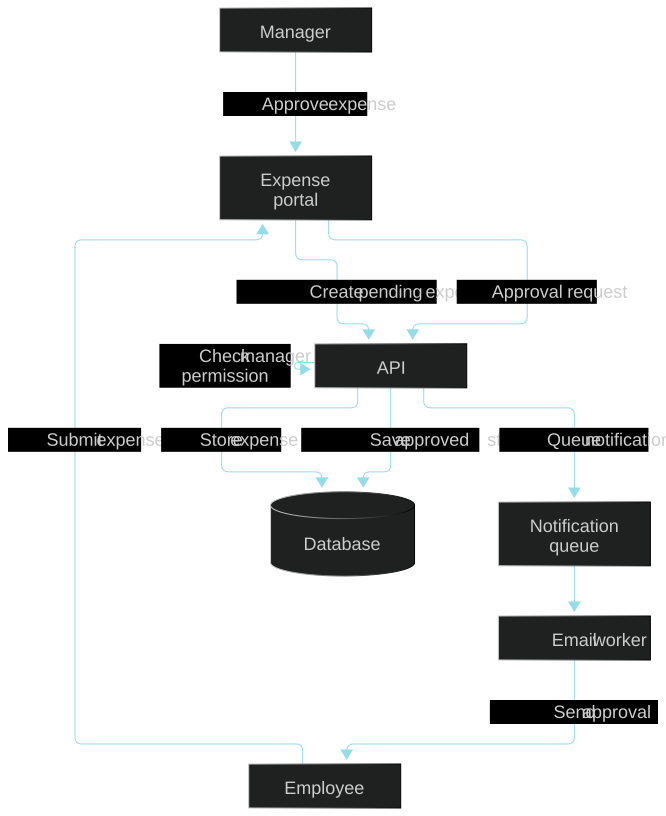
I use agents to write Mermaid text and preview it in Mermaid Live when I need diagrams for internal documentation. It gives me an editable artifact with labels and relationships I can review. Compared with generating a diagram as an AI image, corrections can be small text edits instead of another image-generation attempt.
Why Mermaid instead of an AI-generated diagram image?
A documentation diagram needs its arrows and names to be correct, not merely convincing. Mermaid describes diagrams in text, and Mermaid Live lets you preview that text. If a service name changes, I can update the label. If an arrow is wrong, I can change one relationship and render again.
That is why I think of this as a cheaper workflow: it avoids some image-generation iterations and makes later updates easier. Agent usage still has a cost, and I am not claiming a measured saving or that every Mermaid diagram is automatically accurate. The useful difference is that I can inspect and revise the structure directly.
What context does the agent need?
Give it the source of truth: relevant handlers, a short architecture description, an API contract, or an approved design document. Ask it to distinguish established behavior from uncertainty. If the context does not show a queue, the agent should not invent one because a queue makes the picture look more complete.
Create a Mermaid flowchart from this specification.
Use only components and relationships stated in the source.
List uncertain details separately instead of drawing them as facts.
Explain the evidence for each arrow. Return editable Mermaid text.
For external previews, use fictional or sanitized examples rather than private names, credentials, or internal URLs. Keep sensitive source and rendering in your approved internal environment. The example in this article is entirely fictional.
What does the fictional expense system actually do?
An employee submits an expense through a portal. The portal sends it to an API, which stores it as pending in a database. A manager uses the same portal to approve an expense. The API checks manager permission; an unauthorized request is rejected. For an authorized request, it saves the approved status, then queues a notification. A worker consumes that notification and sends an email to the employee.
This deliberately small specification gives the review a boundary. It does not define retry policy, queue delivery guarantees, or a transaction linking the database write to the queued message. Those details must not appear as facts in the diagram.
Flowchart: which components connect?
The static flowchart below shows the component relationships. Copy this source into Mermaid Live to edit it. The diagram is a view of the fictional specification, not a diagram of a real employer’s systems.
flowchart TB
  Employee["Employee"] -->|Submit expense| Portal["Expense portal"]
  Portal -->|Create pending expense| API["API"]
  API -->|Store expense| DB[(Database)]
  Manager["Manager"] -->|Approve expense| Portal
  Portal -->|Approval request| API
  API -->|Check manager permission| API
  API -->|Save approved status| DB
  API -->|Queue notification| Queue["Notification queue"]
  Queue --> Worker["Email worker"]
  Worker -->|Send approval email| Employee
Sequence diagram: what happens during approval?
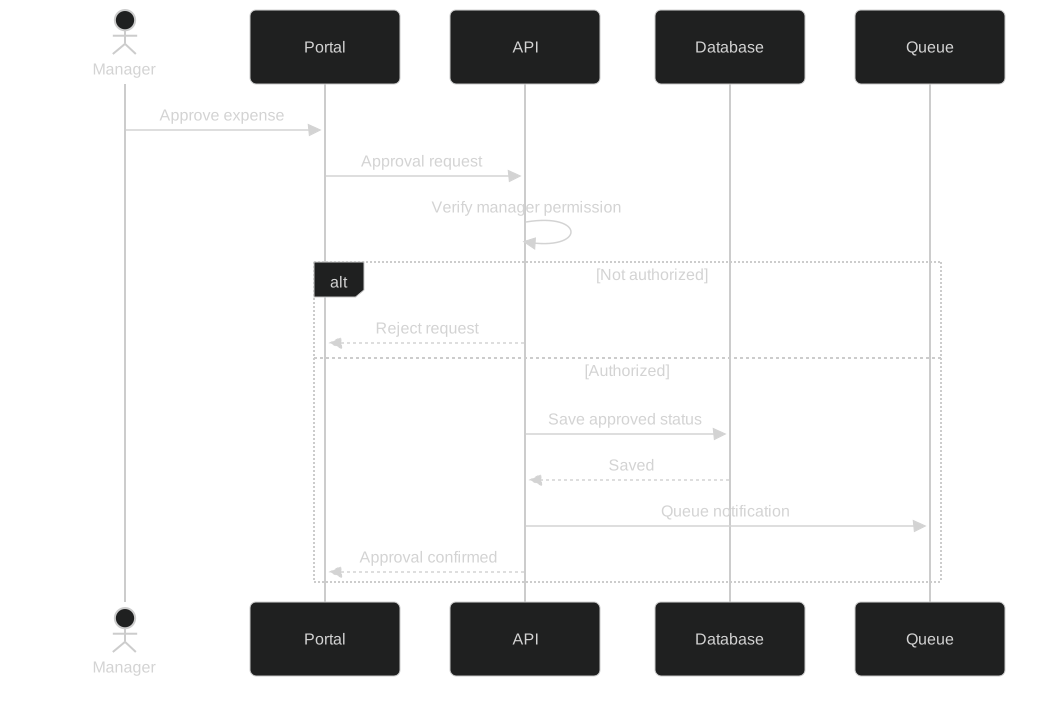
A sequence diagram answers a different question: ordering. Here it shows the permission check before the database write, and the notification being queued after the saved response. The unauthorized branch rejects the request without a database write or queued notification.
sequenceDiagram
  actor Manager
  participant Portal
  participant API
  participant DB as Database
  participant Queue
  Manager->>Portal: Approve expense
  Portal->>API: Approval request
  API->>API: Verify manager permission
  alt Not authorized
    API-->>Portal: Reject request
  else Authorized
    API->>DB: Save approved status
    DB-->>API: Saved
    API->>Queue: Queue notification
    API-->>Portal: Approval confirmed
  end
How do I make the diagram accurate?
- Check every component against the specification or code.
- Check each arrow’s direction, label, and evidence.
- Compare the success path and the failure path separately.
- Ask a reviewer to explain the diagram back to you; investigate any mismatch.
- Render the source to catch syntax errors, then review meaning independently.
Successful rendering only proves that Mermaid accepted the syntax. It does not prove the architecture. In this example, showing the notification before the saved database response would contradict the specification even if the renderer produced a beautiful image.
How do I keep diagrams from becoming stale?
Keep the Mermaid source beside the document or code it describes, and review it when that source changes. Export SVG for readable static documentation; include the source so the next person can update it. A pull request can then show exactly which label or relationship changed instead of replacing an opaque screenshot.
Agents are useful for the first draft and for proposing updates. My responsibility is to verify the result. Editable source, a quick preview, and an explicit review are what make this workflow practical for internal docs.
Sources and related reading
See Mermaid’s introduction, Mermaid usage and integration guidance, and Mermaid Live Editor. To make the underlying plan clearer before drawing it, see grill-me and grill-with-docs. For another evidence-first agent workflow, read Claude SEO.
Questions
Are agent-generated Mermaid diagrams automatically accurate?
No. Valid syntax means the renderer understands the text. You still need to verify components, arrows, ordering, and failure paths against the source.
Why can Mermaid be cheaper than generating diagram images?
Labels and relationships can be corrected as text without regenerating an image through an image model. Actual savings depend on agent costs, review time, and the number of revisions; no fixed savings are claimed here.
Should I paste confidential internal documentation into Mermaid Live?
Use fictional or sanitized examples in external tools. Keep confidential source and diagram rendering within your organization’s approved environment.